1. What Is IPTV Activation? (The Handshake)
Most people assume IPTV works like Netflix — install an app and press play. It doesn't. IPTV activation is a cryptographic handshake between your device and the provider's server. Understanding this eliminates 80% of support questions before they happen.
Your Device
Sends: server URL + username + password
Zilio's Server
Returns: channel list + stream URLs + EPG token
Here's what happens under the hood:
- Step 1 — Authentication request. Your player sends a
GET /get.php?username=X&password=Y&type=m3u_plus(M3U) or aPOST /player_api.php(Xtream Codes) request to the server URL Zilio gives you. - Step 2 — Server validates. Zilio's server checks your subscription status, concurrent connection count, and geographic allowance. If all pass, it issues an authenticated session token.
- Step 3 — Channel list delivered. The server returns your playlist: 20,000+ channels with individual stream URLs, EPG source ID, and category metadata.
- Step 4 — Per-channel handshake. Every time you open a channel, a fresh request goes to the server. The server checks your token again and opens a dedicated stream. This is why "Invalid Credentials" can appear mid-session — your token expired or concurrent sessions hit the limit.
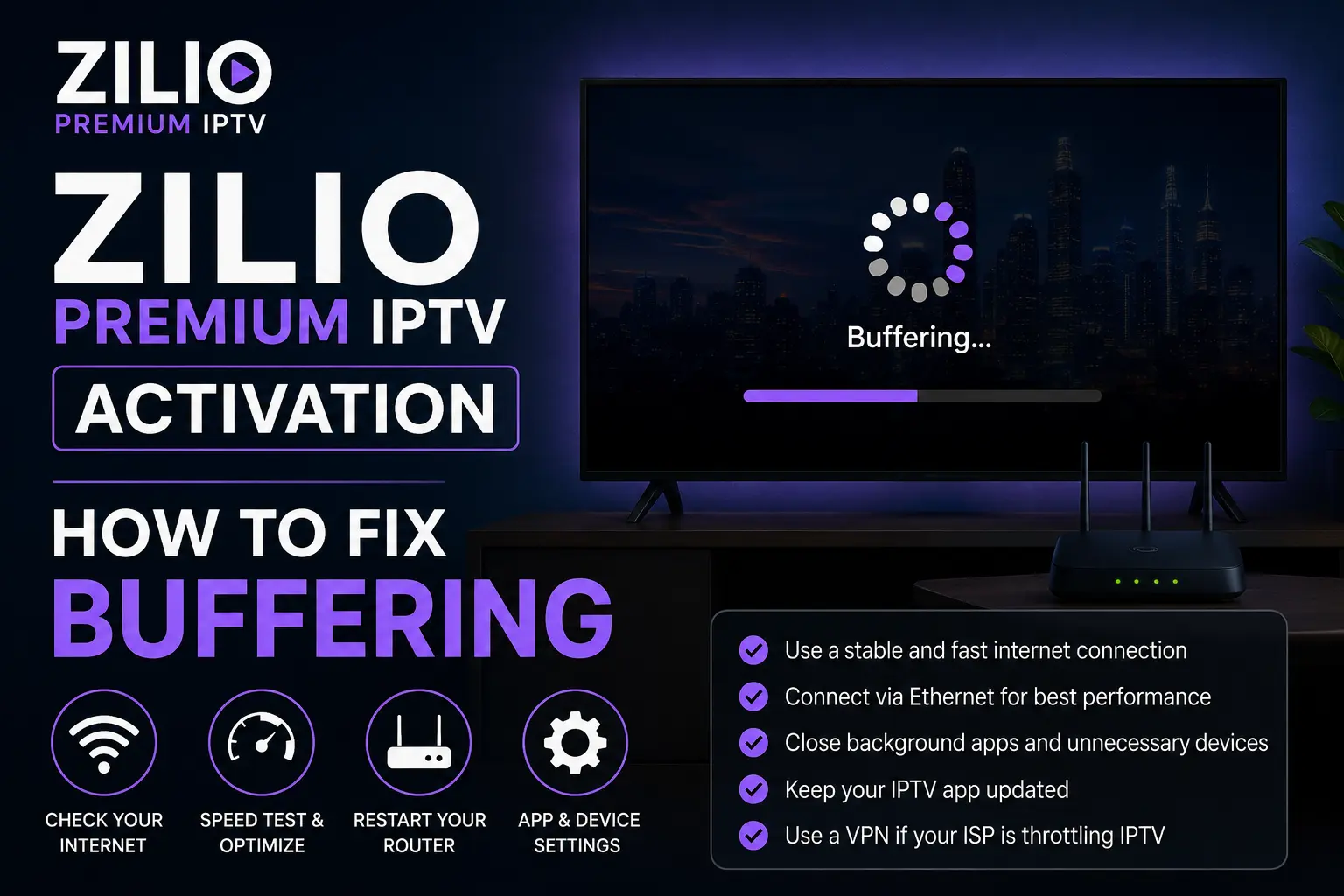
Key insight: "Buffering" and "Invalid Credentials" are different problems with different fixes. Buffering = stream delivery issue. Invalid Credentials = authentication failure. Don't treat them the same.
2. Player Comparison: TiviMate vs IPTV Smarters Pro vs GSE Smart IPTV
Your choice of player has a larger impact on buffering than most people realise. Some players use a web-view renderer (slow, crashes on 4K). Others use native hardware-accelerated decoding. Here's the technical breakdown:
| App | Best For | Interface Type | 4K Stability | EPG Speed |
|---|---|---|---|---|
| TiviMate | Power users, multi-device, Firestick / Android TV | Native Material Design — hardware-accelerated | ★★★★★ Excellent ExoPlayer + hardware decode |
Fast — local EPG cache, loads in <2 s |
| IPTV Smarters Pro | Beginners, iOS, Android, cross-platform simplicity | Hybrid web-view UI | ★★★★ Good Software decode on some devices |
Medium — fetches EPG from server each launch |
| GSE Smart IPTV | Apple TV, iPhone, iPad, Mac users | Native iOS / macOS / tvOS | ★★★★ Good AVFoundation decode — best on Apple silicon |
Medium — XMLTV import, slower than TiviMate cache |
Our recommendation: Use TiviMate on Firestick and Android TV. Use IPTV Smarters Pro if you need a single app across iOS and Android. Use GSE Smart IPTV on Apple TV and iPhone for the native experience. All three are fully compatible with Zilio's Xtream Codes API.
3. Amazon Firestick Setup (Step-by-Step)
Firestick is the most common IPTV device and the one with the most friction at setup — because TiviMate isn't in the Amazon App Store. You have to sideload it. Here's the exact process:
- From the Fire TV home screen: Settings → My Fire TV → Developer Options. Enable Install Unknown Apps and ensure ADB Debugging is on.
- In the search bar on Fire TV home, search for Downloader by AFTVnews. Install it. It's free and listed in the Amazon App Store.
- Open Downloader. In the URL bar, type:
https://tivimate.com/apkand press Go. The TiviMate APK will download (~15MB). Tap Install when prompted, then Open. - In TiviMate, tap Add Playlist → Xtream Codes API. You will need three values from your Zilio activation email: Server URL, Username, Password.
- Enter the values exactly — no trailing spaces. Tap Add. TiviMate connects to Zilio's server, verifies your credentials, and begins downloading the channel list. This takes 60–90 seconds.
- Once loaded, you'll see all categories. Go to Settings → Player Settings and apply the optimisations in Section 7 before watching anything.
- Change your Firestick DNS: Settings → Network → [Your Wi-Fi] → Advanced → DNS. Set Primary to
8.8.8.8, Secondary to1.1.1.1.
Downloader code shortcut: If you can't type the URL easily, open Downloader and use the code field. Enter 492950 — this is the official code for TiviMate downloads via the Downloader app.
Get Your Activation Credentials
Order once — receive your server URL, username, and password within minutes via WhatsApp or Email. Activate immediately on Firestick.
4. Smart TV Setup (MAC Address Registration)
Smart TVs (Samsung Tizen, LG webOS, Android TV) use a different activation method from Firestick. Most Smart TV IPTV apps identify themselves by MAC address rather than username/password. Your MAC address is a unique hardware identifier the app reads from your TV's network card.
Recommended app: Smart IPTV (siptv.eu) — one-time £5.49 purchase, supports Samsung and LG.
- Open the Samsung App Store or LG Content Store. Search for Smart IPTV and install it.
- Launch the app. It displays your TV's MAC address on screen — it looks like
AA:BB:CC:DD:EE:FF. Write it down or photograph it. - On a phone or computer, go to siptv.eu. Enter your MAC address exactly as shown — including the colons, uppercase letters, no spaces.
- Paste your Zilio M3U URL into the playlist field on siptv.eu. Click Upload. The server registers your MAC address against your playlist URL.
- Back on the TV, restart the Smart IPTV app. It fetches the playlist from the server and loads all channels. First load takes 2–3 minutes for 20,000 channels.
- If you see "Playlist not found" — the MAC was not registered correctly. Double-check for a zero (0) vs letter O mix-up and re-register.
MAC address is case-sensitive. The app displays uppercase letters (A–F). Entering lowercase on siptv.eu will fail to match. Copy exactly.
- Open Google Play Store. Install TiviMate (search by name). TiviMate is natively available on Android TV via Play Store — no sideloading needed.
- Open TiviMate → Add Playlist → Xtream Codes API. Enter your Zilio server URL, username, and password.
- Apply buffer optimisations: Settings → Player → Buffer Size
10 seconds, Stream FormatMPEG-TS.
Ready to Activate on Your Smart TV?
We send you the M3U URL and Xtream Codes details. Paste them in — you're live in under 3 minutes.
5. iOS Setup (iPhone & iPad)
Two solid options: IPTV Smarters Pro (free, App Store) or GSE Smart IPTV (£2.99, App Store). Both support Xtream Codes.
Using IPTV Smarters Pro:
- Open the App Store. Search IPTV Smarters Pro and install it.
- Tap Add New User → Xtream Codes API.
- Fill in Your Name (anything), Server URL, Username, Password from your Zilio activation email. Tap Add User.
- The app loads your channels. Tap Live TV to start watching.
Using GSE Smart IPTV:
- Install GSE Smart IPTV from the App Store.
- Tap the menu (≡) → Remote Playlists → +. Select Xtream Code API.
- Enter playlist name, server URL, username, password. Save.
- GSE syncs and categorises all channels automatically.
6. Android Setup (Phone & Tablet)
- Open Google Play Store. Install TiviMate (best option) or IPTV Smarters Pro.
- For TiviMate: tap Add Playlist → Xtream Codes API. Enter Zilio server URL, username, password.
- For IPTV Smarters Pro: tap Add New User → Xtream Codes API. Same credentials.
- After channels load, apply optimisations from Section 7.
Note on mobile data: A 4K stream uses 15–25 Mbps. On mobile data, switch to HD (720p/1080p) channels to avoid burning through your allowance. TiviMate lets you filter by resolution category.
7. First 10 Minutes: Pro Buffer Optimisation
Most users start watching immediately after adding their playlist. Don't. Spend 10 minutes in settings first and you'll eliminate the majority of buffering permanently. These are TiviMate-specific, but Smarters and GSE have equivalent settings.
Critical TiviMate Settings
| Setting | Default | Recommended | Why |
|---|---|---|---|
| Buffer Size | 3 seconds | 10 seconds | Absorbs network hiccups without visible freeze |
| Stream Format | Auto | MPEG-TS | Most universally compatible; eliminates codec mismatch black screens |
| Hardware Acceleration | Auto | Enabled | Uses GPU for decoding — reduces CPU load and heat on Firestick |
| EPG Update Interval | 24h | 12h | Keeps guide current without hammering the server |
| Connection Timeout | 5 seconds | 10 seconds | Prevents false "stream error" on slightly slow channels |
DNS Optimisation (All Devices)
Change DNS at the router level to affect all devices at once, or per-device if you can't access router settings:
- Primary DNS:
8.8.8.8(Google) — fastest global resolution - Secondary DNS:
1.1.1.1(Cloudflare) — privacy-first fallback - Alternative:
8.8.4.4+9.9.9.9(Quad9 — good for EU/Middle East)
Changing DNS alone cuts buffering start-times by 30–50% for users on BT, Virgin Media, AT&T, and Comcast — all of which use congested DNS infrastructure.
8. Troubleshooting Matrix
Match your symptom to the table. The fix column gives you the fastest resolution path.
| Symptom | Probable Cause | Instant Fix |
|---|---|---|
| "Invalid Credentials" | Trailing space in username or password | Delete the last character of the password field — there is likely an invisible space. Re-type manually rather than pasting. |
| Buffering every 20–30 s | DNS latency or ISP throttling | Change DNS to 8.8.8.8. If persists at peak hours only → ISP throttling → enable VPN (Proton VPN Free to test). |
| Channel freezes at "Loading…" | App cache corruption or stale playlist token | Settings → Apps → [IPTV App] → Clear Cache + Clear Data. Restart app. Force-refresh playlist. |
| Black screen after channel loads | Codec container mismatch (MPEG-4 vs TS) | In TiviMate: Settings → Player → Stream Format → switch to MPEG-TS. In Smarters: try a different player core. |
| EPG shows blank / no guide | EPG fetch timeout or timezone mismatch | Retry EPG update at off-peak hours. Confirm your device timezone matches your country. In TiviMate: Settings → EPG → Time Offset. |
| "Authentication Failed" | Account not yet activated | Zilio activation is processed manually. Wait 5–10 minutes after ordering. Check WhatsApp/email for your credentials message. |
| 4K channel stutters, HD is fine | Buffer too small for 4K bitrate (15–25 Mbps) | Increase Buffer Size to 10 seconds in TiviMate settings. Also ensure you're on Wi-Fi 5 GHz or Ethernet — 2.4 GHz Wi-Fi often can't sustain 4K. |
| Stream drops only during live sports | Server overload from concurrent viewers | This is a provider infrastructure problem — not device-side. Switch to a premium provider (like Zilio) with load-balanced servers and automatic failover. |
| Smart TV MAC not recognised | MAC entered incorrectly or app not restarted | Re-enter MAC from the app screen exactly — uppercase, with colons. Do not use hyphens. Fully restart (not just close) the IPTV app after registering. |
| Can't install TiviMate on Firestick | Unknown sources not enabled | Settings → My Fire TV → Developer Options → Install Unknown Apps → set Downloader to ON. Then reinstall via Downloader code 492950. |
9. US Expat Activation: Arabic & Hebrew Channels
If you're an Arabic or Hebrew speaker living in the US, you face a specific problem: your ISP may throttle Middle Eastern IPTV traffic more aggressively than domestic streams. This is because the traffic routes to European and MENA servers instead of US-based CDN nodes, which some ISPs treat as "foreign streaming" and deprioritise at peak hours.
How Zilio Solves This
Zilio's server infrastructure runs behind Cloudflare's anycast network. Your stream request hits the nearest Cloudflare Point of Presence (PoP) — in the US, that's typically New York, Los Angeles, Dallas, or Chicago — before being routed to the origin server. This means:
- Your ISP sees traffic to a Cloudflare IP, not a foreign IPTV server — reducing the chance of throttling
- Latency is dramatically lower than connecting to a European server directly
- CDN edge caching absorbs load spikes during high-demand events (Ramadan broadcasts, beIN Sports matches)
Arabic Channel Coverage
Arabic-speaking expats in the US can access:
Hebrew Channel Coverage
Israeli expats in the US:
No VPN required. Because Zilio routes via Cloudflare's US edge nodes, you do not need a VPN to access Arabic or Hebrew channels from the United States. A VPN may actually add latency unnecessarily — only use one if you confirm ISP throttling via testing (stream without VPN, note buffering; enable VPN, note if it improves).
Ramadan streaming tip: Demand for Arabic channels spikes 8–10× during Ramadan. If you experience buffering during Ramadan prime time, switch to the backup stream mirror in TiviMate by pressing and holding the channel name → Select Alternative Stream.
10. Frequently Asked Questions
How do I fix buffering on IPTV?
8.8.8.8. (3) In TiviMate: Buffer Size → 10 seconds, Stream Format → MPEG-TS. (4) Force-close all background apps. (5) If buffering only occurs at peak hours (evenings, weekends), your ISP is throttling — enable a VPN (Proton VPN Free) to test. If the VPN stops the buffering, throttling is confirmed.